Your complete guide to shipping to and from Spain. Find the right route, get Maersk office locations, discover local solutions, payment options and more.
Once you’ve registered on Maersk website you will have access to MyFinance, which is where you’ll find the Smart Pay payment option.
2. Set up bank details
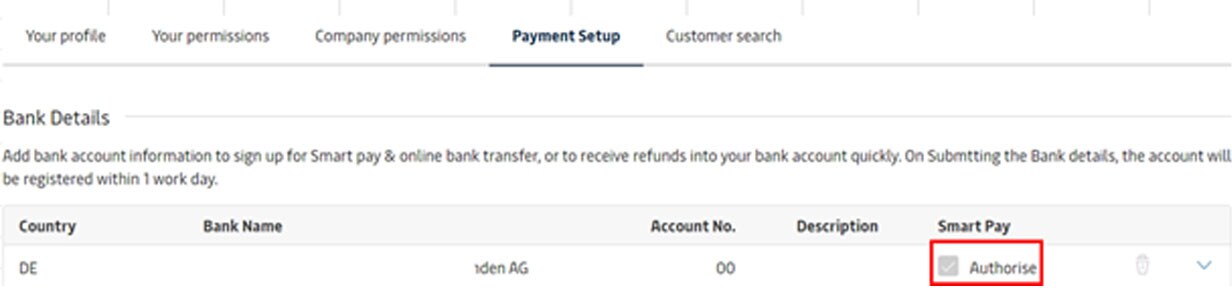
In MyFinance page navigate to Profile > Settings > Payment Setup tab > Add Bank Account button to set up a bank account. Please note it may take up to 24 hours to verify your account information.
Once your bank account is set up in MyFinance, Authorize tick box will show a check mark in the Smart Pay column.
3. Making payments
Navigate to the MyFinance from the Manage menu.
Select the invoice(s) you wish to pay, (If you have multiple invoices you wish to pay, you can select and pay them in one transaction (all the invoices are same currency).
Click Pay button.
Select the bank account you wish to pay from.
Agree to the terms and conditions and then click ‘Proceed to pay button’.
Click Submit Payment button after reviewing the summary of invoice(s) and total amount to be paid.
After reviewing your submission and approving payment, your payment will be instantly applied to the concerned shipments/invoices.
Receipts can be downloaded from the Paid tab > select the invoice no. > select the 3rd icon Download Payment Receipt .
Once you’ve registered on Maersk website you will have access to MyFinance, which is where you’ll find the Credit/Debit Card payment option.
2. Set up card details
In MyFinance page navigate to ‘Profile’ > ‘Credit/Debit Cards’ tab to set up your card details. By updating details in this tab, you are able to save your tokenized card, which you can use for future payments.
In case you don’t want to save your card details for future use, then navigate to ‘ePayment’.
select invoices to pay.
select credit/debit card option.
select ‘new credit card’ option.
3. Making payments
Navigate to the ‘ePayment’ tab in MyFinance.
select the invoice(s) you wish to pay, (If you have multiple invoices you wish to pay, you can select and pay them in one transaction (all the invoices are same currency).
select the credit card you wish to pay from.
agree to the terms and conditions and then click ‘Continue’.
After reviewing your submission and approving payment, your payment will be instantly applied to the concerned shipments/invoices.
Receipts can be downloaded from the ‘Paid Invoices’ tab. Please note it may take up to 24 hours for receipts to be available.
The Rate of Exchange can be found on the invoice itself which you can look up in our MyFinance tool.
In case you would like to calculate the ROE upfront, we suggest to use benchmark ROE (Maersk uses an independent third-party provider for ROE called Refinitiv as benchmark) and use our markup information which can be found here.
The rate of exchange applied to invoices reflects Maersk’s cost of sourcing foreign currency from the FX markets.
Maersk uses the rate of exchange at the prevailing conversion rate on the date of issuing the first invoice for the shipment in question. The same conversion rate will be applied to any subsequent invoice(s) issued in relation to the same shipment. For import detention and demurrage invoices, Maersk will convert the currency based on the last available rate of exchange on the invoice creation date.
For further questions or concerns, please refer to Maersk’s standard Terms and Conditions.

 LinkedIn
 WeChat